FBR POS Integration Setup Checklist: From PoS ID to Sandbox Testing and Go-Live
A practical FBR POS setup checklist: PoS ID, business details, tax codes, FBR local service, sandbox test invoices and returns, and a safe go-live.
Getting FBR POS integration live is mostly a matter of doing a handful of small things in the right order. Skip one, and the first real invoice is where you find out. This checklist follows the order we use when we set up a shop in PaakiShop, with the tests that catch problems before a customer is standing at the counter.
Key takeaways
- Get your PoS ID first, then enter your business details and tax codes in your POS.
- Install FBR's local service on the counter PC and run the built-in readiness test.
- Test sales, discounts, card payments, returns and error cases on the FBR sandbox.
- Sandbox invoices are marked TEST. Go live on one counter first and watch the register.
Step 1: registration and details
- Confirm with your tax consultant or FBR that you must integrate (see FBR POS integration for Tier-1 retailers).
- Get your PoS ID from FBR for each reporting shop or counter.
- Collect your NTN, STRN, business name, address and tax office, written exactly as they should print.
Step 2: FBR Setup in PaakiShop
In FBR Setup choose the local FBR (POS/IMS) mode and enter:
| Field | Why it matters |
|---|---|
| PoS ID | Printed on every receipt and sent with every invoice. Must be numeric and match your FBR registration. |
| NTN and STRN | Mandatory business details on the receipt. |
| Business name and address | Printed at the top of the receipt. |
| Tax office (tax formation) | Mandatory on the SRO 1006 layout. |
| Default PCT/HS code | Used for products without their own code. A line with no code is blocked rather than guessed. |
| FBR service address | Where the FBR program on the counter PC listens. PaakiShop's default is the standard local address; change it only if your installation uses another. |
Several shops under one NTN? Add each shop with its own PoS ID. An invoice from a shop with no PoS ID is refused instead of being reported under another shop's ID.
Step 3: install FBR's local service
FBR's integration program runs as a small service on the counter PC. The browser on that PC talks to it, and PaakiShop stores the result. If the service is not running, the invoice is simply marked as not sent and can be retried, which is covered in what to do when an invoice will not send.
Then press Run Test in FBR Setup. It checks every mandatory detail, shop by shop, and names anything still missing.
Step 4: sandbox test plan
Use the FBR sandbox and tick these off. Sandbox invoices carry a TEST badge in PaakiShop, so they cannot be confused with real ones.
| # | Test | What you should see |
|---|---|---|
| 1 | A simple one-item cash sale | FBR number, QR and logo saved; receipt prints. |
| 2 | Several items with different quantities | Lines add up to the invoice total to the paisa. |
| 3 | A discounted sale | Discount shown; tax worked out on the discounted value. |
| 4 | Card or bank payment | Payment mode shown correctly on the receipt. |
| 5 | Press the send button twice | The second press shows the saved number; no duplicate. |
| 6 | Stop the FBR service, then send | A clear "not reachable" message; the sale stays saved; retry works. |
| 7 | A product with no tax code | Blocked with a message naming the product. |
| 8 | A sales return of that sale | Credit note gets its own number; receipt shows the original invoice. See how to post a sales return to FBR. |
| 9 | Print on 80 mm and 58 mm | QR scans on both; nothing is cut off. |
| 10 | Open the FBR register | Everything above is listed; test items marked TEST. |
Step 5: go live carefully
- Switch to the live PoS IDUse the live registration, not the sandbox one, and send one real invoice at a quiet time.
- Verify itScan the receipt with the Tax Asaan app, or SMS 9966, and confirm it verifies. See FBR QR code and verification.
- Pilot on one counterRun one counter for a few days and check the register's “needs attention” list daily.
- Roll outEnable the other counters and shops once the pilot is clean.
Frequently asked questions
What do I need before I start the setup?
Your PoS ID from FBR, your NTN, STRN, business name, address and tax office, and product tax codes.
Why test on the sandbox first?
It lets you practise sales, returns and error cases without creating real invoices. Sandbox invoices are marked as test invoices.
What if my PoS ID is rejected?
Check that it is numeric and exactly as issued by FBR. If the FBR software on the PC is registered to a different PoS ID, PaakiShop refuses to save the number and tells you.
Do I need to test returns?
Yes. Test a credit note for a sales return on the sandbox before going live. We help you do this.
How long does setup take?
Once you have your PoS ID, the PaakiShop side is usually a short session. Most of the time is spent on registration and tax codes.
We help you set up and test
Enter your PoS ID, test on the sandbox and go live with confidence. Free 3-day trial.
See FBR invoicing in PaakiShopStart free 3-day trialPlease note: this guide explains how FBR POS invoicing and PaakiShop work, in plain language. It is general information, not tax or legal advice. Tax rules and FBR procedures can change, so confirm anything specific to your business with your tax consultant or FBR. PaakiShop integrates with FBR's fiscalization service; it is not an official FBR product.
As the digital landscape globally continues to evolve, the importance of adopting these advanced technologies cannot be overstated. At PaakiShop, we are committed to providing the infrastructure needed for businesses to thrive in this new era.
"The future of retail is not just digital—it is intelligent, autonomous, and deeply personalized."
Stay tuned for more updates as we continue to roll out new features designed to make your commerce experience smoother and more profitable.
Written by PaakiShop Team
Specialist in Agentic Commerce and Global retail ecosystems. Passionate about empowering local entrepreneurs through high-performance technology.
Related Insights
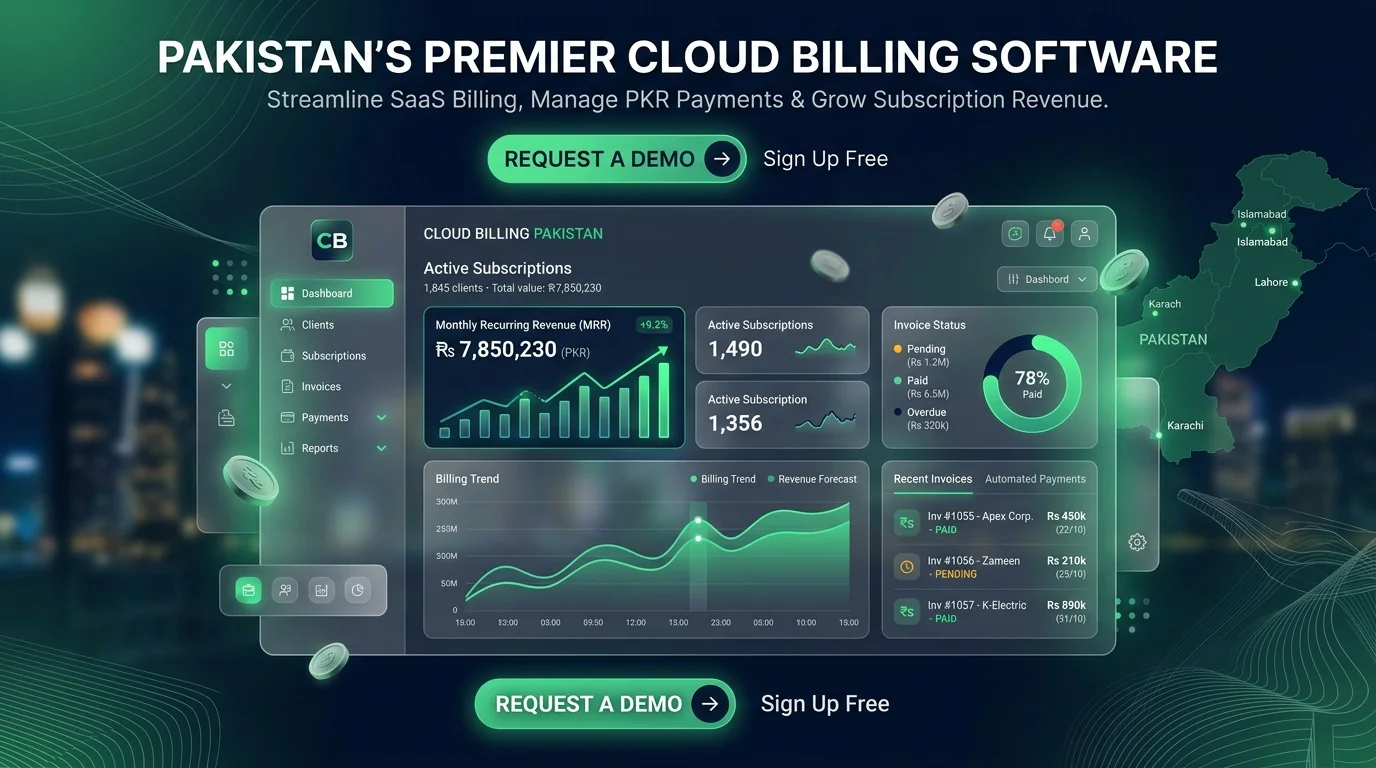
Cloud Billing Software in Pakistan: Automated Invoicing, POS & Subscription Management for MSPs & Retailers
READ NOW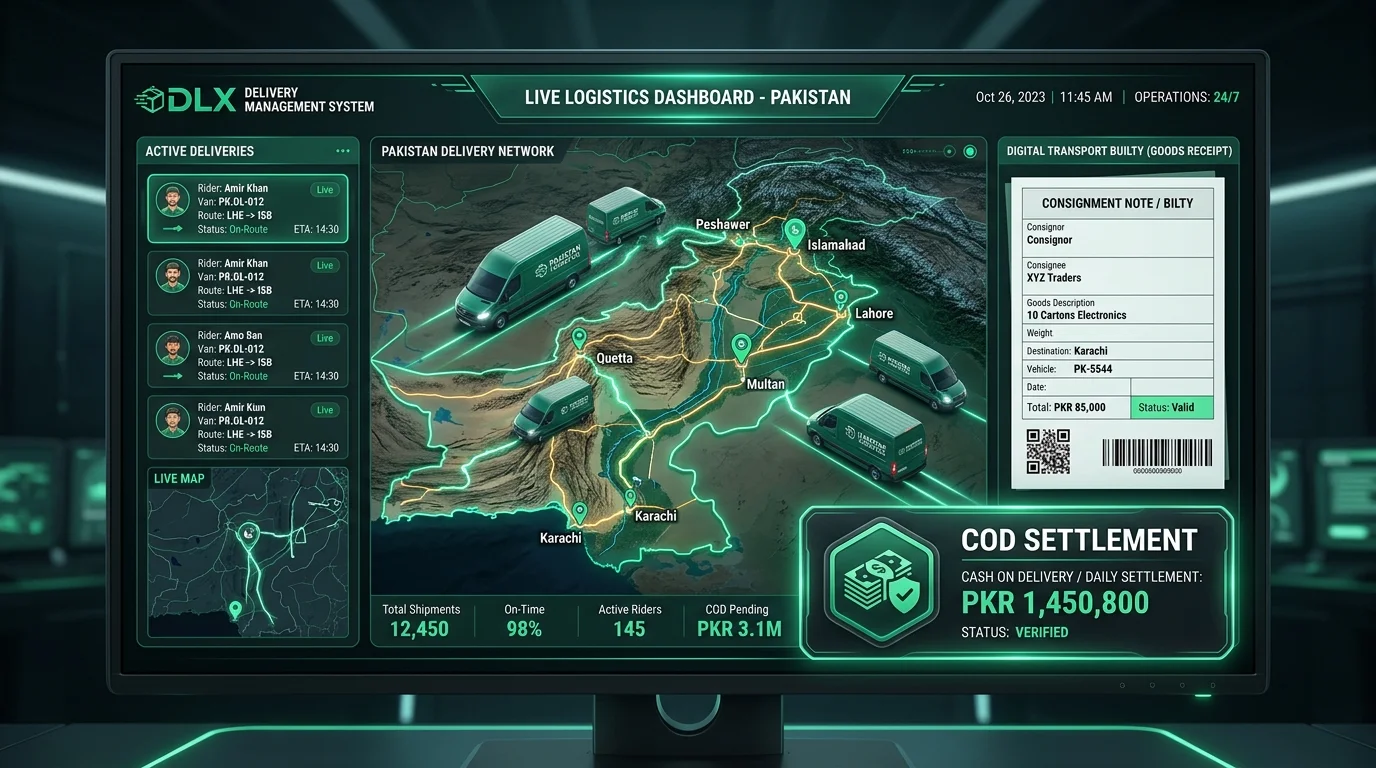
Delivery Management Software in Pakistan: Real-Time Rider Tracking, Courier APIs & Transport Builty ERP
READ NOW