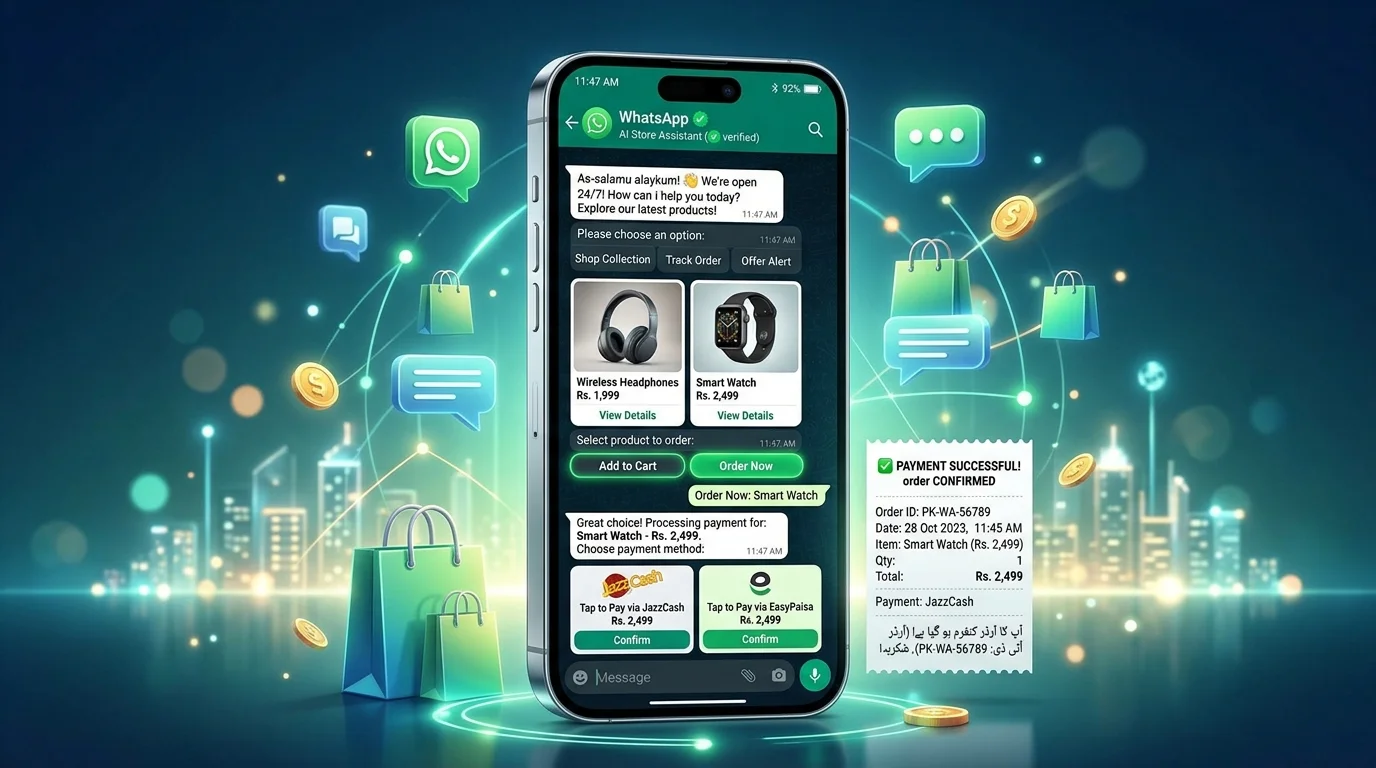
How to Integrate Mobile Payments and Digital Wallets into Your Pakistani Shop's POS System
Learn how to connect JazzCash, Easypaisa, and Raast to your POS system, with tips on security, compatibility, and reconciling sales with inventory.

Categories: POS Systems, Digital Payments, Retail Technology, Small Business Tips, Inventory Management, E-commerce Pakistan
Pakistani shoppers are moving fast toward mobile wallets and account-to-account transfers, and customers now expect to pay with JazzCash, Easypaisa, or Raast just as easily as they hand over cash. If your shop still relies only on cash drawers and manual registers, you are leaving sales on the table and making your own bookkeeping harder than it needs to be. This guide walks you through the practical steps of connecting mobile payment solutions to your point-of-sale system, so both your in-store and online customers can check out seamlessly while your records stay clean and accurate.
Why Mobile Payments Matter for Your POS Setup
Mobile wallets and instant payment rails like Raast have changed how people shop in Pakistan, especially in cities where bank branches and card machines were never common but smartphones are everywhere. A shopper who doesn't carry cash shouldn't have to walk away because your counter can't accept a JazzCash transfer. Integrating these payment methods directly into your POS means:
- Faster checkout for customers who prefer digital payments
- Fewer disputes over change and cash handling
- A single record of every sale, whether paid in cash, card, or wallet
- The ability to sell online and in-store using the same payment options
For small shop owners, this isn't just a convenience upgrade, it's becoming a basic expectation from customers, particularly younger ones and those running their own small businesses who already transact digitally every day.
Checking Compatibility Before You Integrate
Not every POS system is built to handle mobile wallets out of the box, so it's worth checking a few things before you commit.
Does Your POS Support Multiple Payment Methods?
Your POS software should let you record and tag transactions by payment type, cash, card, JazzCash, Easypaisa, or Raast, so each sale is categorized correctly from the start. This matters later when you're reconciling accounts or reviewing which payment methods your customers actually prefer.
Hardware and Connectivity Needs
Mobile wallet payments usually require either a QR code displayed at checkout, a merchant account number customers can send money to, or an app on a smartphone or tablet connected to your POS. Make sure your shop has reliable internet or mobile data, since wallet transfers need a live connection to confirm instantly. If your area has patchy connectivity, have a backup plan, like confirming payment via SMS alert, so transactions don't get held up.
Separate Merchant Accounts for Each Wallet
JazzCash, Easypaisa, and Raast each require their own merchant or business account setup, which usually involves basic business documentation. It's worth registering for all three where possible, since customers tend to stick with whichever wallet they already use, and you don't want to lose a sale because you only support one network.
Connecting Mobile Wallets to Your POS, Step by Step
- Register merchant accounts with JazzCash, Easypaisa, and your bank for Raast, following their business onboarding process.
- Generate your QR codes or merchant numbers and display them clearly at your checkout counter and on your online store if you sell there too.
- Configure your POS to log wallet payments as a distinct payment type, separate from cash and card, so every transaction is traceable.
- Train your staff to confirm payment receipt (via the wallet app notification or SMS) before marking a sale as complete in the POS.
- Test the full flow with a small transaction before rolling it out to all customers, checking that the sale appears correctly in your POS records and inventory updates as expected.
PaakiShop's POS is built to record sales by payment method and sync them with your inventory and accounts automatically, so once a mobile wallet sale is logged, your stock levels and financial records update together rather than needing separate manual entry.
Security Best Practices When Accepting Mobile Payments
Mobile wallets are generally secure, but a few habits protect both your shop and your customers:
- Always confirm payment before releasing goods. Check the wallet app or SMS notification yourself rather than relying on a customer showing you their phone screen.
- Keep merchant account credentials private. Only trusted staff should have access to confirm or process payments.
- Avoid sharing personal account numbers for business transactions, use your registered merchant account instead so funds and records stay separate from personal finances.
- Reconcile daily. Check your wallet account balance against your POS sales report every day, catching mismatches early before they pile up.
- Be alert to common scams, such as fake payment screenshots, by always verifying the transaction directly through the official app or account statement.
Reconciling Mobile Transactions with Inventory and Accounting
This is where many small shops struggle, even after accepting mobile payments. The sale happens on the wallet app, but if it's not properly linked to your POS, your stock count and your books fall out of sync.
A good workflow looks like this: every wallet payment is logged in the POS at the moment of sale, tagged by payment type, and linked to the specific items sold. This automatically reduces your inventory count and records the revenue in your accounts, so you're not manually copying numbers from a wallet app into a separate ledger or spreadsheet at the end of the day.
PaakiShop brings your online store, POS, inventory, and accounting together in one system, so a mobile wallet sale made at the counter or through your online store updates stock levels and financial records in the same place, without needing to reconcile multiple tools by hand.
Frequently Asked Questions
Can I accept JazzCash, Easypaisa, and Raast all at once in my shop?
Yes, you can register merchant accounts with each provider separately and display all three options at checkout. Customers will simply choose whichever wallet they already use.
Do I need a smartphone for every checkout counter?
At minimum, you need one device, a smartphone or tablet, connected to the internet to receive and confirm wallet payments. Larger shops with multiple counters may want a device at each one to avoid delays.
What happens if a mobile payment fails but my POS shows the sale as complete?
Always confirm the payment notification before finalizing the sale in your POS. If a payment fails after the sale is logged, reconcile it immediately by checking your wallet account against your POS report so the discrepancy is corrected the same day.
Bringing mobile payments into your POS isn't just about keeping up with customer expectations, it's about making your daily operations simpler and your records more reliable. If you're ready to connect your online store, POS, inventory, and accounting in one place, explore how PaakiShop can support your shop's move toward digital payments today.
As the digital landscape globally continues to evolve, the importance of adopting these advanced technologies cannot be overstated. At PaakiShop, we are committed to providing the infrastructure needed for businesses to thrive in this new era.
"The future of retail is not just digital—it is intelligent, autonomous, and deeply personalized."
Stay tuned for more updates as we continue to roll out new features designed to make your commerce experience smoother and more profitable.
Written by PaakiShop Team
Specialist in Agentic Commerce and Global retail ecosystems. Passionate about empowering local entrepreneurs through high-performance technology.
Related Insights

Cloud Billing Software in Pakistan: Automated Invoicing, POS & Subscription Management for MSPs & Retailers
READ NOW
Delivery Management Software in Pakistan: Real-Time Rider Tracking, Courier APIs & Transport Builty ERP
READ NOW